
We use cookies to help you navigate efficiently and perform certain functions. You will find detailed information about all cookies under each consent category below.
The cookies that are categorised as "Necessary" are stored on your browser as they are essential for enabling the basic functionalities of the site. ...
Necessary cookies are required to enable the basic features of this site, such as providing secure log-in or adjusting your consent preferences. These cookies do not store any personally identifiable data.
Functional cookies help perform certain functionalities like sharing the content of the website on social media platforms, collecting feedback, and other third-party features.
Analytical cookies are used to understand how visitors interact with the website. These cookies help provide information on metrics such as the number of visitors, bounce rate, traffic source, etc.
Performance cookies are used to understand and analyse the key performance indexes of the website which helps in delivering a better user experience for the visitors.
Advertisement cookies are used to provide visitors with customised advertisements based on the pages you visited previously and to analyse the effectiveness of the ad campaigns.
Other uncategorised cookies are those that are being analysed and have not been classified into a category as yet.

-
Product
-
Solutions
 Bankingaqua ALM helps banks increase testing productivity by over 50%
InsuranceConsistent testing with aqua ensures robust insurance software that increases retention
ManufacturingUsing aqua helps an IoT manufacturer save 3% of revenue by reducing production defects
Governmentaqua paves the way for digital transformation with a portfolio of 7 government organisations
Tech companiesaqua helps reach a defect detection ratio of 98% with thorough and efficient testing
Medicalaqua proudly serves 10+ enterprise medical companies to level up their QA
-
Resources
BlogTips & tricks on how to manage testing process effectively and speed up releases
aqua wikiDetailed information on aqua capabilities, functionality and features
Product updatesDescription of our newest features and their value to QA teams
Success storiesCompanies that want to keep up with digital change trust in aqua
Product FAQFast answers to the most important product questions
Data centersExplore our infrastructure & global locations



Save hours on QA and development with the most visual test reports
Capture records the entire test execution, breaks down all your actions, stores key data about software & hardware used for testing, and wraps everything up in a single report

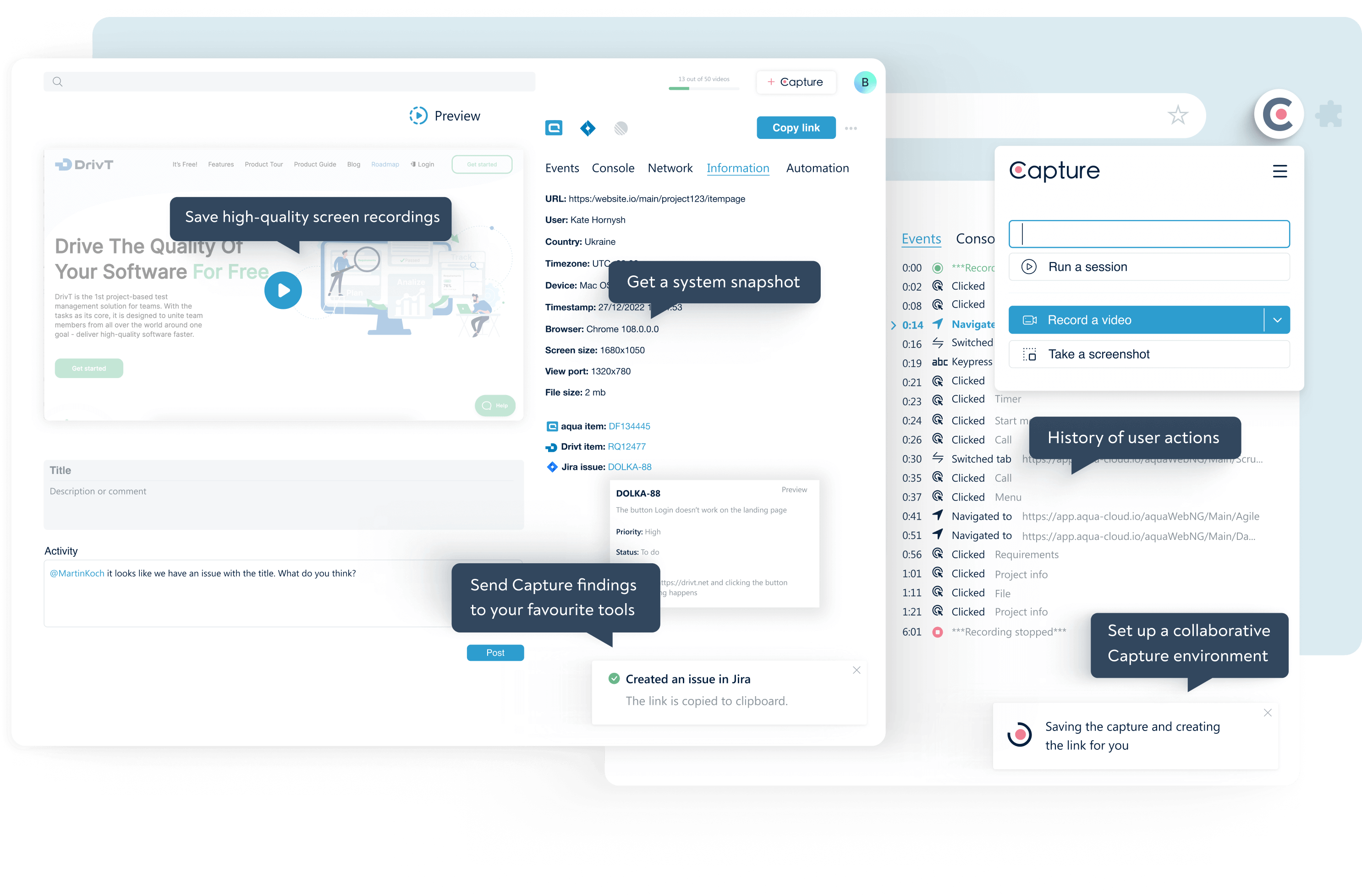
Reduced time to report bugs
Saved on testing, communication
with devs & reporting, and bug
reproduction
Traceability via screenshots & videos
Use Capture as self-sufficient test recording Chrome extension
Capture brings the efficiency and convenience of a Chrome extension to report bugs at any scale
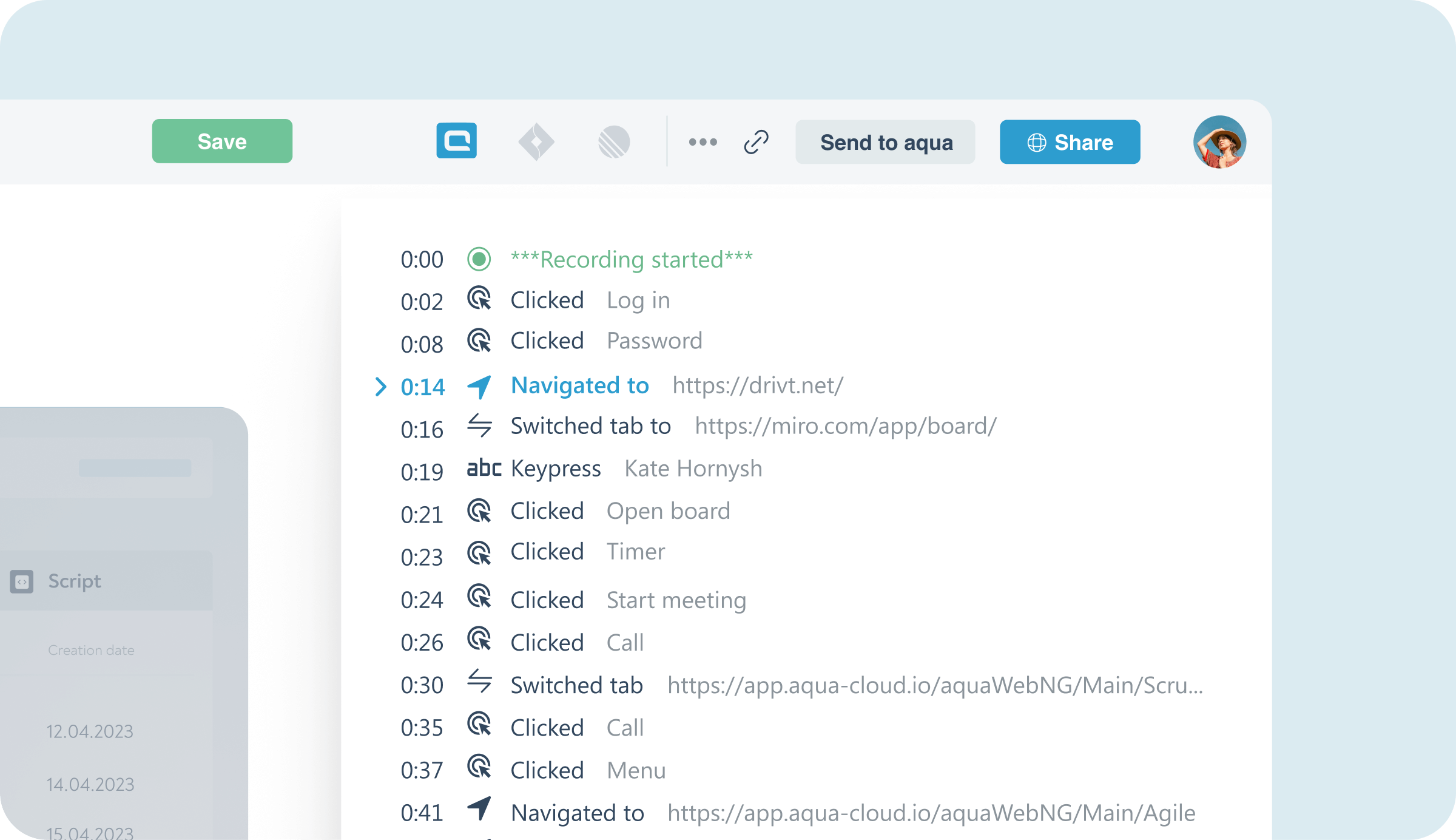
Record interactions on web
pages
Capture automatically records all your actions within each test step. Developers get a timestamped video of your test execution with the transcript of actions, so they can reproduce defects in no time
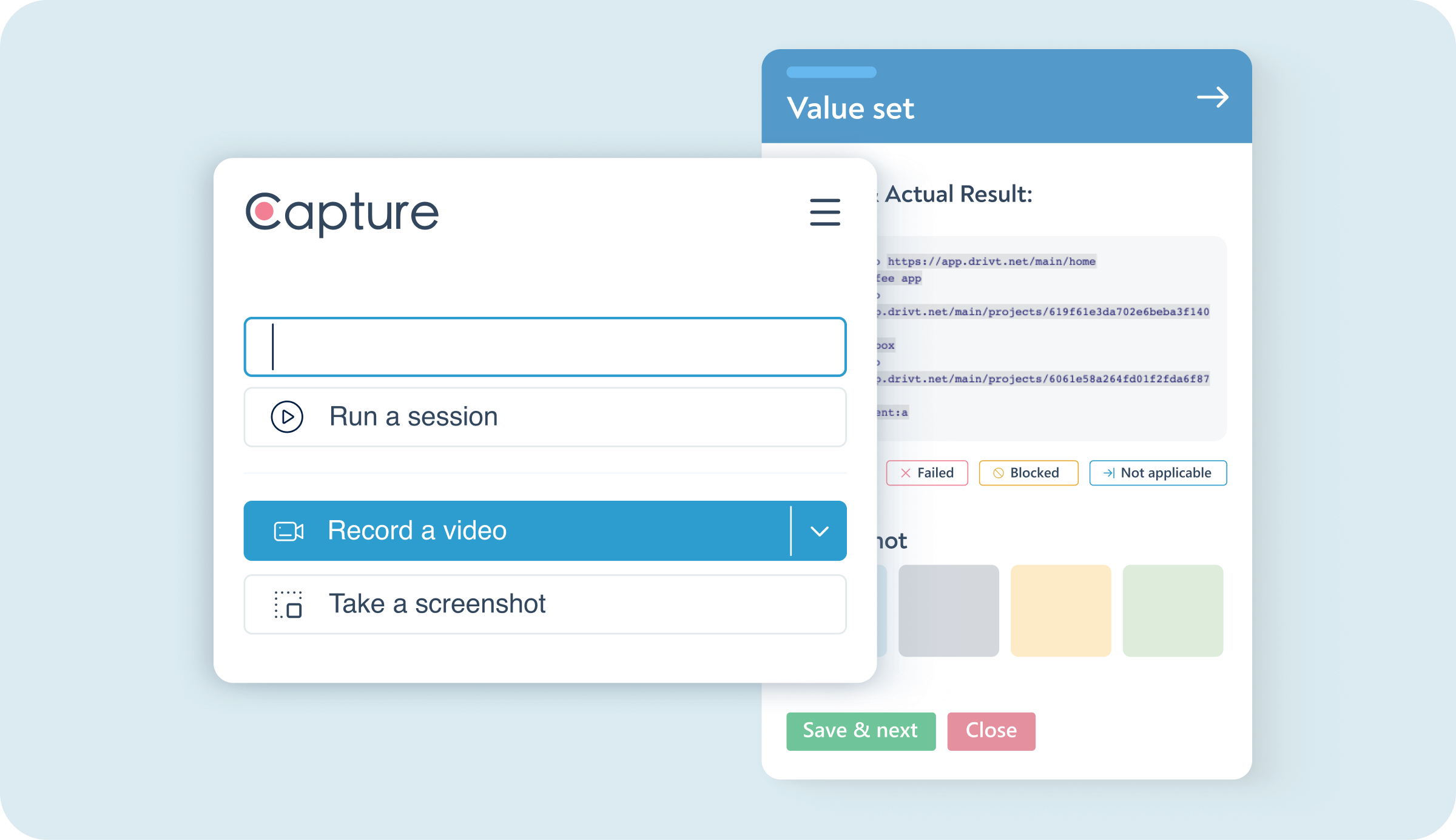
Give more context,
have fewer meetings
The Capture bug reporting extension provides full desktop capture, window recording, in-App screencast. Run a session and provide the developers with a timestamped video from your test session with a found defect, so they can understand the issue in no time
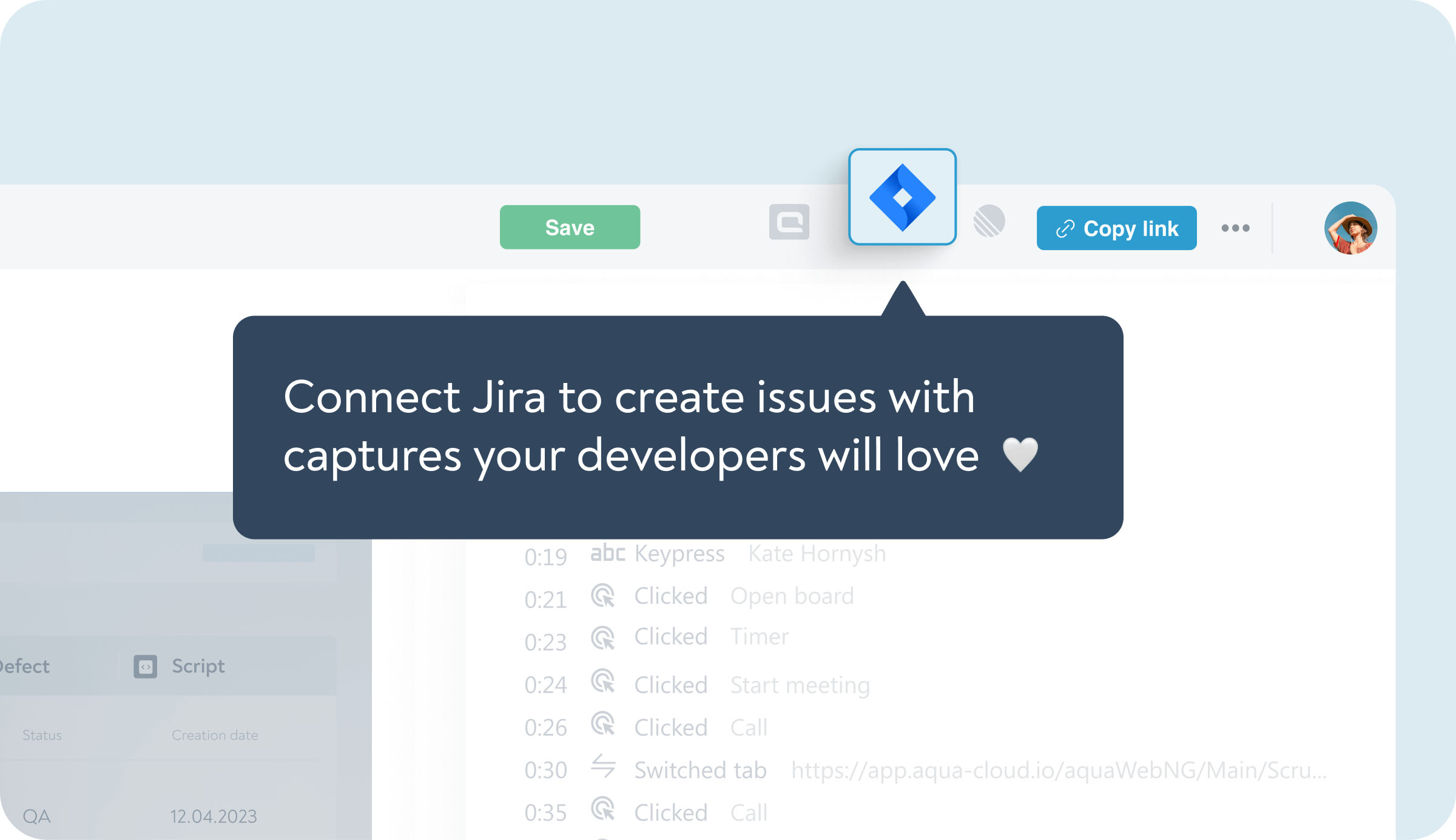
Send visualised issues to Jira and aqua
Capture a defect, then create a Jira or aqua ticket in one click. Your colleagues will get a link to see test execution video, OS info, and even console & network logs
Take full or partial
screenshots and annotate
them
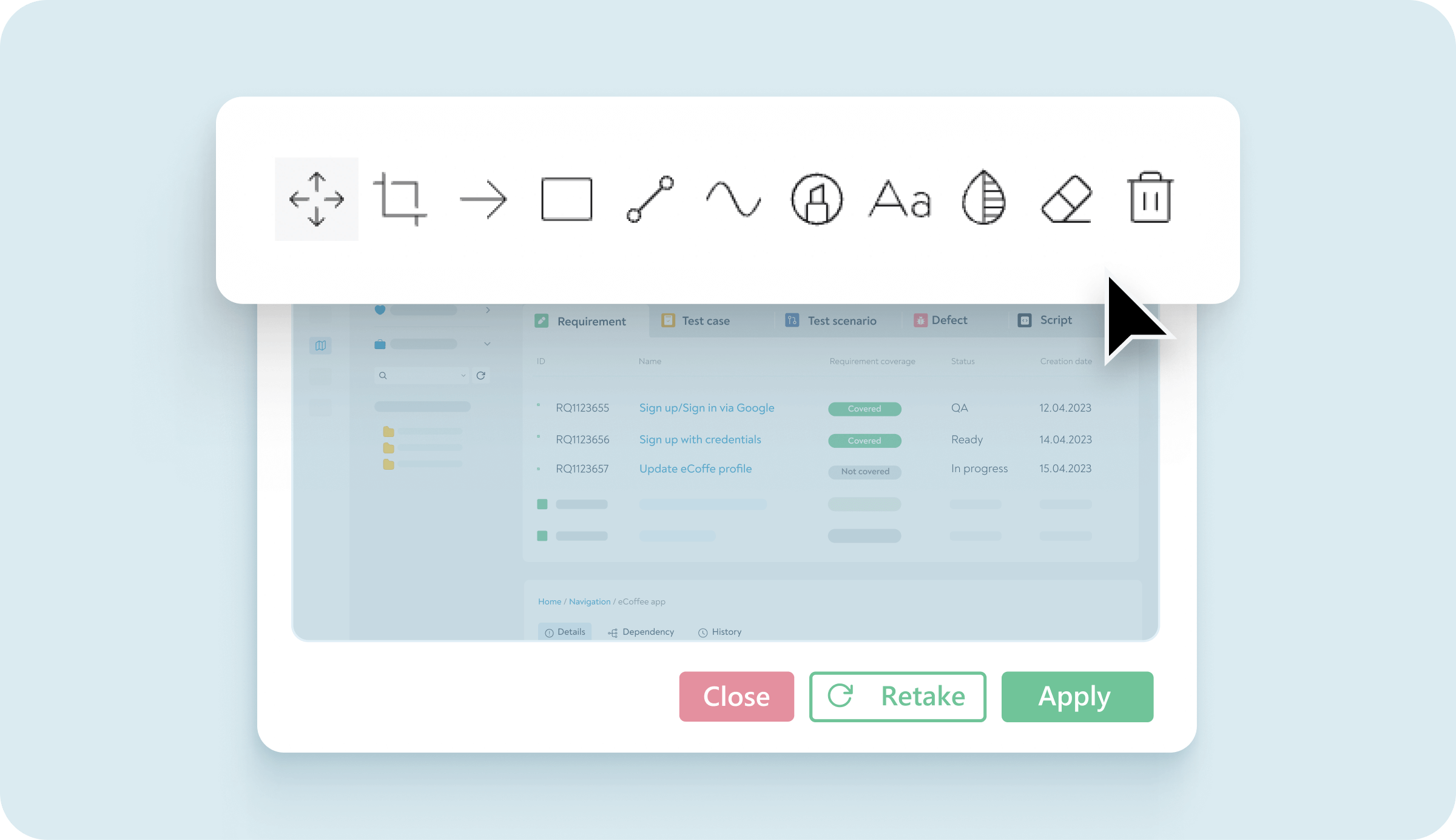
Save screenshots for visual proof then draw over them for clarity, blur specific areas on the image to hide sensitive data, and crop screenshots — all without leaving the tested website
Test example:
Validating login form

-
Open the test case
-
2) Open another tab with tested website
-
3) Enter user login
-
4) Take screenshot
-
5) Switch tabs to test case execution
-
6) Mark step as Success/Fail
-
7) Upload screenshot
-
8) Switch back to website
-
9) Enter user password
-
10) Take screenshot
-
11) Switch tabs to test case execution
-
12) Mark step as Success/Fail
-
13) Upload screenshot
-
14) Switch back to website
-
15) Click “Sign In”
-
16) Take screenshot
-
17) Switch tabs to test case execution
-
18) Mark step as Success/Fail
-
19) Upload screenshot
-
⭐ Finish execution
-
21) Fill out test report
-
22) Create defects manually
-
23) Attach screenshots from test report to defect tickets
-
Open the test case
-
2) Open another tab with tested website
-
3) Start recording a video
-
4) Enter user login
-
5) Switch tabs to test case execution
-
6) Mark step as Success/Fail, create defect(s)
-
7) Upload screenshot
-
8) Switch back to website
-
9) Enter user password
-
10) Capture & upload screenshot
-
11) Switch tabs to test case execution
-
12) Mark step as Success/Fail, create defect(s)
-
13) Upload screenshot
-
14) Switch back to website
-
15) Click “Sign In”
-
16) Capture & upload screenshot
-
17) Switch tabs to test case execution
-
18) Mark step as Success/Fail, create defect(s)
-
19) Upload screenshot
-
⭐ Finish execution to auto-send complete test report
-
21) Fill out test report
-
22) Create defects manually
-
23) Attach screenshots from test report to defect tickets
 What your developers get
Old-fashioned testing
Unmarked screenshots and/or video
Tester’s rendition of what they have been doing

Annotated screenshots and/or timestamped video
Log of all inputs done by the tester
Info on used software & hardware
Auto-generated genuine test report
 Get developers better test reports faster
than ever
Testing with Capture saves time for everyone
Hi, tester
- Save hours by not switching tabs every time
- Get automated log of test execution
- Streamline exploratory testing by Capturing any page
Hi, tech lead
- See test execution as if you were doing it
- Analyse performance data with DevTools logs
- Interact with QA in the tool you prefer
Hi, Upper Management
- Save time of testers and developers to get more features done
- Avoid QA & dev errors from lack of communication
- Ace regulatory audits with test execution videos from Capture

Proven quality over 13 years

“Manual test cases are easily automated with aqua. Seamless integration with test automation tools helps here.”

“The aqua support and development team is a reliable partner for the implementation of the customer requirements of the KBA.”

“I was surprised to find such a comprehensive and mature tool for test management in the German market without having taken it seriously beforehand.”
 Speed up your testing by 56%
FAQ
How much does it cost?
Once workspace functionality is out of beta, you can invite as many people as you like. Capture is a collaboration-minded tool, and it shines the brightest when everyone on your team uses it.
How many people can use it?
Once workspace functionality is out of beta, you can invite as many people as you like. Capture is a collaboration-minded tool, and it shines the brightest when everyone on your team uses it.
Does Capture work with my test management solution?
Once workspace functionality is out of beta, you can invite as many people as you like. Capture is a collaboration-minded tool, and it shines the brightest when everyone on your team uses it.
How do you properly report a bug with Capture?
To report a bug with Capture, start a session, record your actions, add screenshots or videos, and send the bug report directly to aqua or Jira with technical details and context – streamlining the process for bug tracking.
What does "bug report captured" mean?
“Bug report captured” means all relevant information – steps, logs, screenshots, and technical details – has been recorded and saved for effective bug resolution.
How do you get a bug report using Capture?
With Capture, record your session while testing, reproduce the bug, stop the recording, and send the report to aqua or Jira with all technical details included.
How do I send a bug report with Capture?
To send a bug report with Capture, reproduce the bug, record the session, then click ‘Send to aqua’ or Jira to share the detailed report instantly.
Notifications